
Once subscribed, they'll get an email each time a new agenda is published for a meeting type they follow — no need to keep checking the portal.
How it works
- Subscriptions are by meeting type (e.g. Ordinary Council, Audit & Risk Committee).
- An email is sent when a new agenda is published for a subscribed meeting type.
- There's no password. Subscribers confirm their email address with a 5-digit one-time code each time they sign up or log in.
Signing up
Share these steps with residents, media and community groups who want to stay up to date.
- Go to the council's public portal and select Log In / Sign Up in the top-right corner.
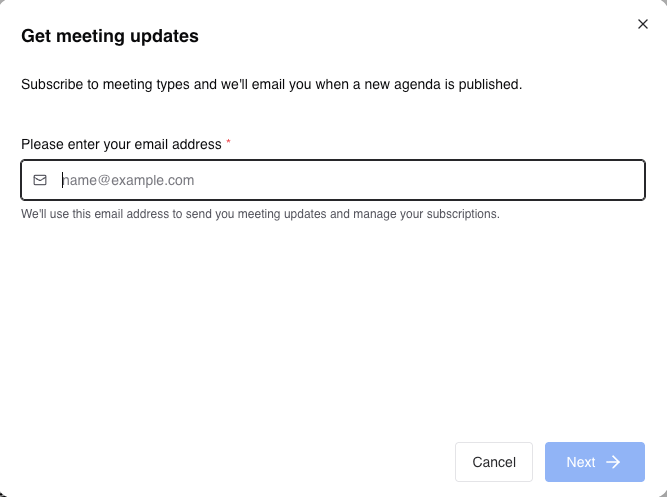
- In the Get meeting updates window, enter your email address and select Next.
- Check your inbox for an email titled Your Resolve Public Portal Code. Enter the 5-digit code and select Next.
Didn't get it? Check your junk folder, select Re-send verification email, or select Use a different email to start again.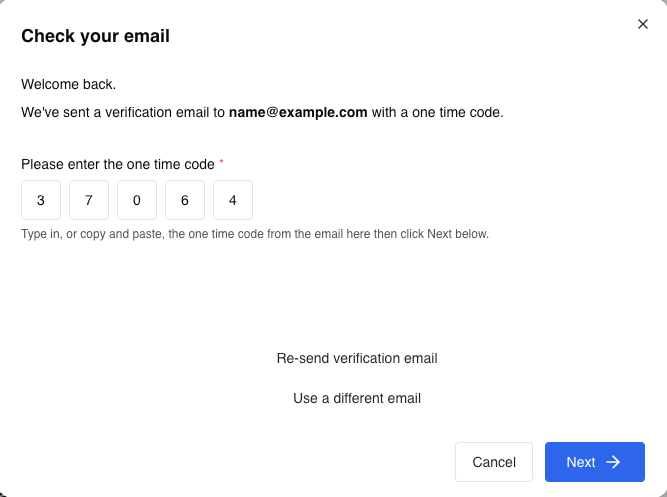
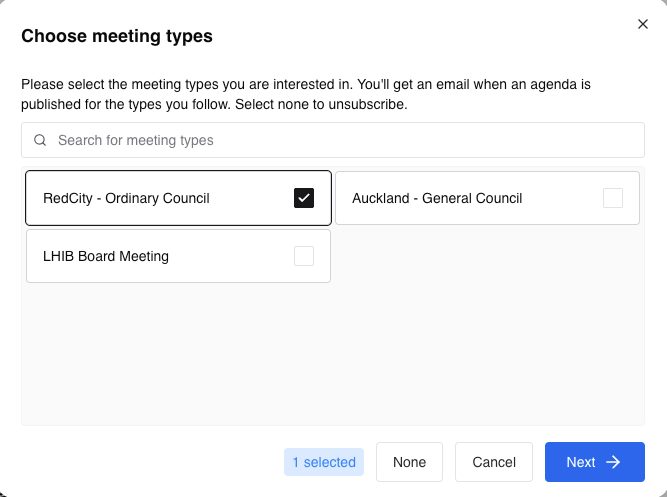
- In Choose meeting types, tick the meeting types you want to follow. You can search the list if there are a lot of them.
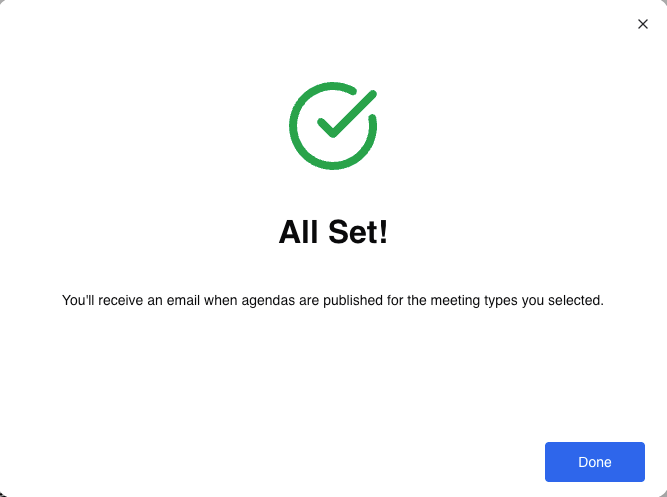
- Select Next. You'll see an All Set! message — select Done.
Changing your subscriptions
If you're still logged in: select Manage in the top-right corner of the portal.
If you've logged out: select Log In / Sign Up, enter your email address and the one-time code, the same as when you signed up.
- The meeting types you already follow are ticked. Tick new ones to add them, or untick ones you no longer want.
- Select Next, then Done.
Unsubscribing
- Open your subscriptions (see above).
- Select None to clear all meeting types, then select Next.
You won't receive any more emails. You can subscribe again at any time.
Logging out
Select Log Out in the top-right corner. Logging out doesn't affect your subscriptions — you'll keep getting emails.
For council staff
- Nothing extra to do when publishing. Notifications go out automatically when you publish a new agenda for a meeting type with subscribers.
- Customising emails. You can edit the wording of subscription emails in your Email Template settings.
- Public questions. If someone isn't receiving emails, ask them to check their junk folder, then log in and confirm they're subscribed to the right meeting types.
Turning on subscriptions
Subscriptions need to be turned on for your public portal before the public can sign up.
- Select the user icon in the top-right corner, then select Site Settings.
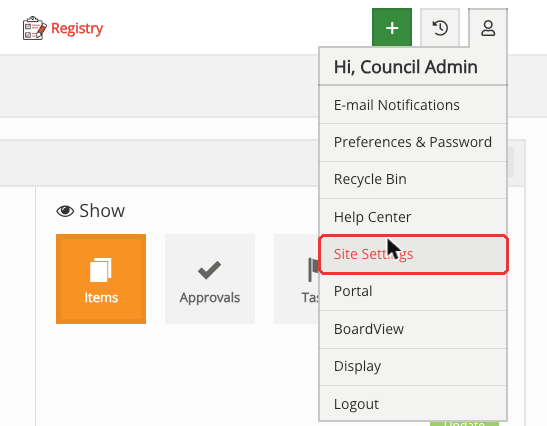
- Under Public Portal and Video, select Public Portal Settings.

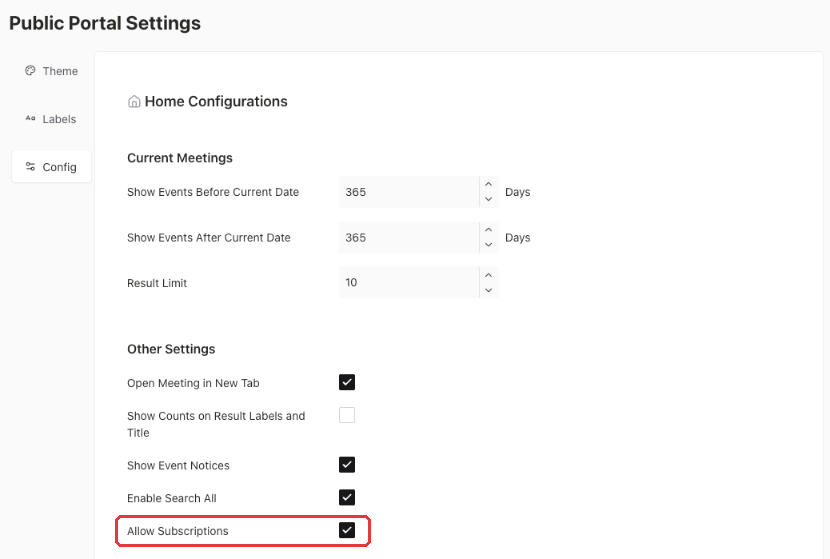
- Open the Config tab and tick Allow Subscriptions under Other Settings.
Need help?
Contact Resolve Support if you have any questions about subscriptions on your public portal.