---
title: Resolve - Adding a Default Item to a Meeting Type
description: Steps on how to associate a Default Item to a Meeting Type and add new Default Item for Resolve administrators
---

[Skip to content](https://info.redmansolutions.com.au/resolve-knowledge-base/resolve-adding-a-default-item-to-a-meeting-type#main-content)

[Submit Ticket](https://info.redmansolutions.com.au/resolve-knowledge-base/kb-tickets/new) [Customer portal](https://info.redmansolutions.com.au/tickets-view)

![Resolve](https://info.redmansolutions.com.au/hs-fs/hubfs/resolve-logo.png?width=100&height=75&name=resolve-logo.png)

Open main navigation

Close main navigation

- [Submit Ticket](https://info.redmansolutions.com.au/resolve-knowledge-base/kb-tickets/new)
- [Customer portal](https://info.redmansolutions.com.au/tickets-view)

 How can we help you?

- There are no suggestions because the search field is empty.

1. [Resolve Knowledge Base](https://info.redmansolutions.com.au/resolve-knowledge-base)
2. [Meeting Admin](https://info.redmansolutions.com.au/resolve-knowledge-base/meeting-admin)
3. [Meeting Configuration](https://info.redmansolutions.com.au/resolve-knowledge-base/meeting-admin#meeting-configuration)

# Resolve - Adding a Default Item to a Meeting Type

## Steps on how to associate a Default Item to a Meeting Type and add new Default Item for Resolve administrators

Question:  How to associate a Default Item to a Meeting Type for Resolve administrators

Prerequisites:  Resolve user with Administrator permissions

Answer:  Within Site Settings, an Admin user can associate Default Item with a Meeting Type.  See steps following. 

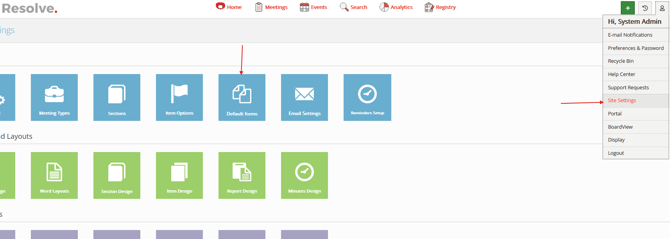
**1. **Using your browser, navigate to https://CLIENTNAME.resolve.red/Admin/\> **Site Settings **and select **Default Items** to see if the Template you're wanting to add to Meeting Types exists, if it does **move to** **Step 3**. If it does not continue to **Step 2. **

![](https://info.redmansolutions.com.au/hs-fs/hubfs/image-png-Feb-27-2025-11-27-08-6162-PM.png?width=1714&height=613&name=image-png-Feb-27-2025-11-27-08-6162-PM.png)  
**2. **Create a New default Item.    
![](https://info.redmansolutions.com.au/hs-fs/hubfs/image-png-Jan-31-2024-12-25-32-2999-AM.png?width=151&height=47&name=image-png-Jan-31-2024-12-25-32-2999-AM.png)  
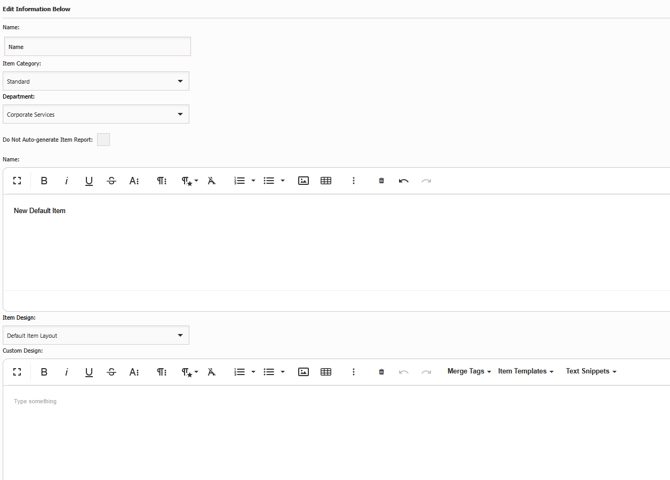
**3.** Add a Name, Item Category and Department your New Default Item will relate to. Use the drop down to select the appropriate Item Design  **Note: **You do not need to add anything in the Custom design box.
![](https://info.redmansolutions.com.au/hs-fs/hubfs/image-png-Feb-27-2025-11-29-26-3397-PM.png?width=1256&height=901&name=image-png-Feb-27-2025-11-29-26-3397-PM.png)  
**Select save.**   
![](https://info.redmansolutions.com.au/hs-fs/hubfs/image-png-Jan-31-2024-12-26-22-9722-AM.png?width=114&height=41&name=image-png-Jan-31-2024-12-26-22-9722-AM.png)  
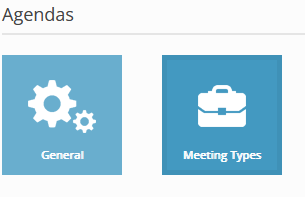
**4.**  Navigate back to **Site Settings** and select **Meeting Types**   
![](https://info.redmansolutions.com.au/hs-fs/hubfs/image-png-Jan-31-2024-12-26-36-8344-AM.png?width=305&height=197&name=image-png-Jan-31-2024-12-26-36-8344-AM.png)   
**5.**  Under Meeting Types, click on the green **Default Items** icon to view the config for the Agenda.   

![](https://info.redmansolutions.com.au/hs-fs/hubfs/image-png-Jan-31-2024-12-27-11-8734-AM.png?width=460&height=89&name=image-png-Jan-31-2024-12-27-11-8734-AM.png)  


**6.**  Click on the **\[EDIT DEFAULT ITEMS\]** button for the section to amend.   
![](https://info.redmansolutions.com.au/hs-fs/hubfs/image-png-Jan-31-2024-12-27-30-4490-AM.png?width=413&height=42&name=image-png-Jan-31-2024-12-27-30-4490-AM.png)

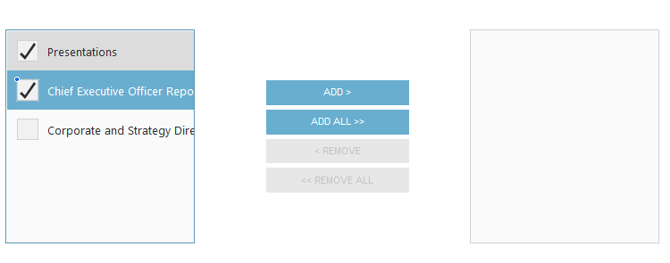
**7.**  Tick the Default Items to add, click **\[ADD\>\]** then **\[SAVE\]** buttons.  (NOTE: Add individually to achieve the required order before saving changes)   
![](https://info.redmansolutions.com.au/hs-fs/hubfs/image-png-Jan-31-2024-12-27-47-7384-AM.png?width=670&height=264&name=image-png-Jan-31-2024-12-27-47-7384-AM.png)![](https://info.redmansolutions.com.au/hs-fs/hubfs/image-png-Jan-31-2024-12-28-05-9143-AM.png?width=80&height=45&name=image-png-Jan-31-2024-12-28-05-9143-AM.png)

- [Councillor Portal](https://info.redmansolutions.com.au/resolve-knowledge-base/councillor-portal)
- [Meeting Admin](https://info.redmansolutions.com.au/resolve-knowledge-base/meeting-admin#main-content)

    - [Minutes](https://info.redmansolutions.com.au/resolve-knowledge-base/meeting-admin#minutes)
    - [Meeting Configuration](https://info.redmansolutions.com.au/resolve-knowledge-base/meeting-admin#meeting-configuration)
- [Report Writing](https://info.redmansolutions.com.au/resolve-knowledge-base/report-writing#main-content)

    - [Getting Started](https://info.redmansolutions.com.au/resolve-knowledge-base/report-writing#getting-started)
    - [Approvals](https://info.redmansolutions.com.au/resolve-knowledge-base/report-writing#approvals)
- [Site Administrator](https://info.redmansolutions.com.au/resolve-knowledge-base/site-administrator#main-content)

    - [Media and Streaming](https://info.redmansolutions.com.au/resolve-knowledge-base/site-administrator#media-and-streaming)
- [Notifications](https://info.redmansolutions.com.au/resolve-knowledge-base/notifications)
- [Internal](https://info.redmansolutions.com.au/resolve-knowledge-base/internal)
- [General](https://info.redmansolutions.com.au/resolve-knowledge-base/general)

[![redman-solutions-primary-logo-RGB\_transparent-1](https://info.redmansolutions.com.au/hs-fs/hubfs/Images/Logos/redman-solutions-primary-logo-RGB_transparent-1.png?width=400&height=113&name=redman-solutions-primary-logo-RGB_transparent-1.png "redman-solutions-primary-logo-RGB_transparent-1")](https://www.redmansolutions.com.au/)

Level 1, 40 McDougall St, Milton, QLD 4064

Contact Support: [help@redmansolutions.com](mailto:help@redmansolutions.com)

Copyright © 2025, Redman Solutions