---
title: Resolve - Displaying Minutes Discussion Field
description: During a live meeting, you have the ability to display the Discussion field on the Display screen.
---

[Skip to content](https://info.redmansolutions.com.au/resolve-knowledge-base/resolve-displaying-minutes-discussion-field#main-content)

[Submit Ticket](https://info.redmansolutions.com.au/resolve-knowledge-base/kb-tickets/new) [Customer portal](https://info.redmansolutions.com.au/tickets-view)

![Resolve](https://info.redmansolutions.com.au/hs-fs/hubfs/resolve-logo.png?width=100&height=75&name=resolve-logo.png)

Open main navigation

Close main navigation

- [Submit Ticket](https://info.redmansolutions.com.au/resolve-knowledge-base/kb-tickets/new)
- [Customer portal](https://info.redmansolutions.com.au/tickets-view)

 How can we help you?

- There are no suggestions because the search field is empty.

1. [Resolve Knowledge Base](https://info.redmansolutions.com.au/resolve-knowledge-base)
2. [Meeting Admin](https://info.redmansolutions.com.au/resolve-knowledge-base/meeting-admin)
3. [Minutes](https://info.redmansolutions.com.au/resolve-knowledge-base/meeting-admin#minutes)

# Resolve - Displaying Minutes Discussion Field

## During a live meeting, Minute takers have the ability to display the Discussion field on the Display screen. 

**Prerequisites:  **

- You will typically be a Meeting Administrator with access to the Resolve Admin portal (https://CLIENTNAME.resolve.red/admin/) and appropriate permissions to view the Minutes area.

1. In preparation to display the Comments & Discussion field contents, first navigate to the required Section or Item under the Minutes \[SUMMARY\] tab, then set to **CURRENT ITEM  
   ![](https://info.redmansolutions.com.au/hs-fs/hubfs/image-png-Oct-09-2025-11-50-03-2731-PM.png?width=1689&height=315&name=image-png-Oct-09-2025-11-50-03-2731-PM.png)**
2. Populate the Comments & Discussion field of the Minutes - for example Acknowledgement to Country, Attendance, Conflicts of Interest. (noting this can be done in pre-preparation of the Minutes).
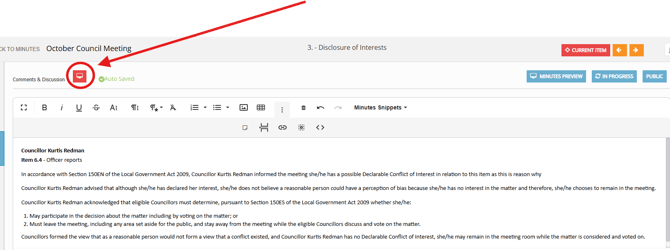
3. When ready to present on the display screen, click the blue **Display screen icon** so it turns red.  
   ![Snip for discussion-1](https://info.redmansolutions.com.au/hs-fs/hubfs/Snip%20for%20discussion-1.png?width=670&height=251&name=Snip%20for%20discussion-1.png)
4. The display screen will update with discussion details.  
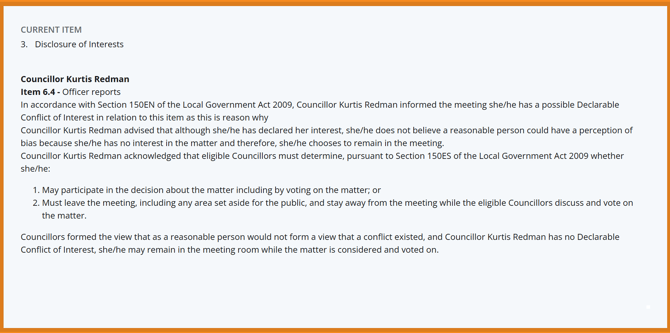
   ![display screen](https://info.redmansolutions.com.au/hs-fs/hubfs/display%20screen.png?width=670&height=334&name=display%20screen.png)
5. You can update details if you need to in the Comments & Discussion Field which will live update on the Display screen.
6. When finished displaying the Comments & Discussion box, again click the **Display screen icon** to toggle "off", which will show by changing back to blue.![](https://info.redmansolutions.com.au/hs-fs/hubfs/image-png-Oct-08-2025-02-16-44-0225-AM.png?width=308&height=83&name=image-png-Oct-08-2025-02-16-44-0225-AM.png)


- [Councillor Portal](https://info.redmansolutions.com.au/resolve-knowledge-base/councillor-portal)
- [Meeting Admin](https://info.redmansolutions.com.au/resolve-knowledge-base/meeting-admin#main-content)


    - [Minutes](https://info.redmansolutions.com.au/resolve-knowledge-base/meeting-admin#minutes)
    - [Meeting Configuration](https://info.redmansolutions.com.au/resolve-knowledge-base/meeting-admin#meeting-configuration)
- [Report Writing](https://info.redmansolutions.com.au/resolve-knowledge-base/report-writing#main-content)


    - [Getting Started](https://info.redmansolutions.com.au/resolve-knowledge-base/report-writing#getting-started)
    - [Approvals](https://info.redmansolutions.com.au/resolve-knowledge-base/report-writing#approvals)
- [Site Administrator](https://info.redmansolutions.com.au/resolve-knowledge-base/site-administrator#main-content)


    - [Media and Streaming](https://info.redmansolutions.com.au/resolve-knowledge-base/site-administrator#media-and-streaming)
- [Notifications](https://info.redmansolutions.com.au/resolve-knowledge-base/notifications)
- [Internal](https://info.redmansolutions.com.au/resolve-knowledge-base/internal)
- [General](https://info.redmansolutions.com.au/resolve-knowledge-base/general)

[![redman-solutions-primary-logo-RGB_transparent-1](https://info.redmansolutions.com.au/hs-fs/hubfs/Images/Logos/redman-solutions-primary-logo-RGB_transparent-1.png?width=400&height=113&name=redman-solutions-primary-logo-RGB_transparent-1.png "redman-solutions-primary-logo-RGB_transparent-1")](https://www.redmansolutions.com.au/)

Level 1, 40 McDougall St, Milton, QLD 4064

Contact Support: [help@redmansolutions.com](mailto:help@redmansolutions.com)

Copyright © 2025, Redman Solutions