---
title: Resolve - Review reports and make comments
description: How to Review Reports and Make Comments on an Agenda
---

[Skip to content](https://info.redmansolutions.com.au/resolve-knowledge-base/resolve-review-reports-and-make-comments#main-content)

[Submit Ticket](https://info.redmansolutions.com.au/resolve-knowledge-base/kb-tickets/new) [Customer portal](https://info.redmansolutions.com.au/tickets-view)

![Resolve](https://info.redmansolutions.com.au/hs-fs/hubfs/resolve-logo.png?width=100&height=75&name=resolve-logo.png)

Open main navigation

Close main navigation

- [Submit Ticket](https://info.redmansolutions.com.au/resolve-knowledge-base/kb-tickets/new)
- [Customer portal](https://info.redmansolutions.com.au/tickets-view)

 How can we help you?

- There are no suggestions because the search field is empty.

1. [Resolve Knowledge Base](https://info.redmansolutions.com.au/resolve-knowledge-base)
2. [Report Writing](https://info.redmansolutions.com.au/resolve-knowledge-base/report-writing)

# Resolve - Review reports and make comments

## How to Review Reports and Make Comments on an Agenda

**Quickly making a comment in a text box:**  
To quickly add a comment, highlight the text you want the comment to relate to  
![](https://info.redmansolutions.com.au/hs-fs/hubfs/image-png-Jul-22-2024-03-45-47-2913-AM.png?width=77&height=55&name=image-png-Jul-22-2024-03-45-47-2913-AM.png)

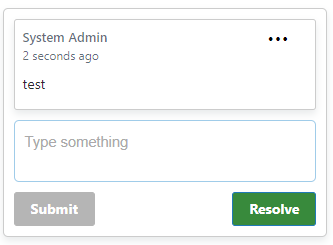
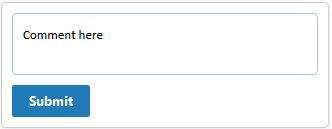
Then add a comment in the comment box on the right and Submit  
![](https://info.redmansolutions.com.au/hs-fs/hubfs/image-png-Jul-22-2024-03-46-22-5947-AM.png?width=332&height=129&name=image-png-Jul-22-2024-03-46-22-5947-AM.png)

Once submitted, the text will be highlighted like below, and when clicked will show the comment

![](https://info.redmansolutions.com.au/hs-fs/hubfs/image-png-Jul-22-2024-03-53-46-1127-AM.png?width=98&height=54&name=image-png-Jul-22-2024-03-53-46-1127-AM.png)

![](https://info.redmansolutions.com.au/hs-fs/hubfs/image-png-Jul-22-2024-03-53-51-6257-AM.png?width=333&height=245&name=image-png-Jul-22-2024-03-53-51-6257-AM.png)

You can now submit a follow up comment or Resolve the comment

**Reviewing Report/Creating Comment with pop out Comments box:**  
In your Agenda, Navigate to an Item and use the Preview button to view the current Item Report.

![](https://info.redmansolutions.com.au/hs-fs/hubfs/image-png-Jun-06-2024-02-27-13-9777-AM.png?width=125&height=39&name=image-png-Jun-06-2024-02-27-13-9777-AM.png)

You can now move this to a 2nd monitor or one side of your screen.  
On your other screen/Other side of your screen you can then Navigate to the Comments Tab

![](https://info.redmansolutions.com.au/hs-fs/hubfs/image-png-Jun-06-2024-02-28-29-7872-AM.png?width=688&height=99&name=image-png-Jun-06-2024-02-28-29-7872-AM.png)

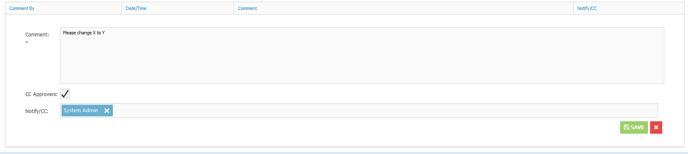
While viewing the Report, you can now click the +Add Comment Button to start Adding a comment.

Fill out the Comment and chose if you want to CC Approvers and/or notify a User.  
![](https://info.redmansolutions.com.au/hs-fs/hubfs/image-png-Jun-06-2024-02-29-18-9527-AM.png?width=688&height=155&name=image-png-Jun-06-2024-02-29-18-9527-AM.png)  
Once done, click save and the Comment will be saved and notify the selected Users.

**Reviewing Comments:**  
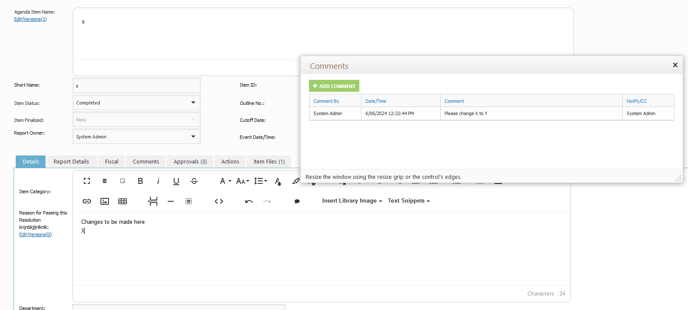
When an Item has comments saved, you can use the Comments Window button to pop out a window of the comments, so you can navigate to the area that needs changes, while keeping the Comments visible like below:  
![](https://info.redmansolutions.com.au/hs-fs/hubfs/image-png-Jun-06-2024-02-33-07-3723-AM.png?width=688&height=311&name=image-png-Jun-06-2024-02-33-07-3723-AM.png)  
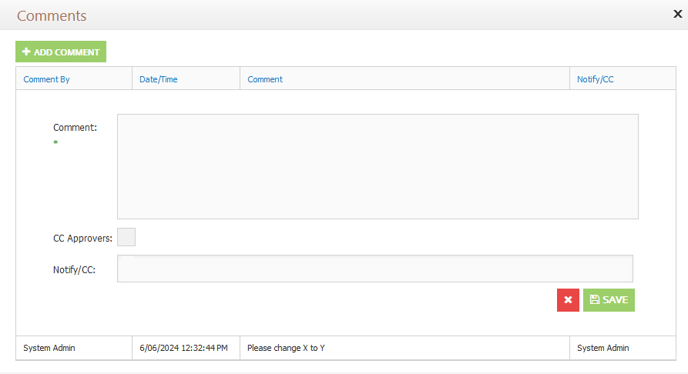
Once changes are made, use the Add Comment button in the Pop Up window to add your comment to let users know the changes have been made.  
![](https://info.redmansolutions.com.au/hs-fs/hubfs/image-png-Jun-06-2024-02-35-39-3335-AM.png?width=688&height=374&name=image-png-Jun-06-2024-02-35-39-3335-AM.png)


Video guide:


- [Councillor Portal](https://info.redmansolutions.com.au/resolve-knowledge-base/councillor-portal)
- [Meeting Admin](https://info.redmansolutions.com.au/resolve-knowledge-base/meeting-admin#main-content)


    - [Minutes](https://info.redmansolutions.com.au/resolve-knowledge-base/meeting-admin#minutes)
    - [Meeting Configuration](https://info.redmansolutions.com.au/resolve-knowledge-base/meeting-admin#meeting-configuration)
- [Report Writing](https://info.redmansolutions.com.au/resolve-knowledge-base/report-writing#main-content)


    - [Getting Started](https://info.redmansolutions.com.au/resolve-knowledge-base/report-writing#getting-started)
    - [Approvals](https://info.redmansolutions.com.au/resolve-knowledge-base/report-writing#approvals)
- [Site Administrator](https://info.redmansolutions.com.au/resolve-knowledge-base/site-administrator#main-content)


    - [Media and Streaming](https://info.redmansolutions.com.au/resolve-knowledge-base/site-administrator#media-and-streaming)
- [Notifications](https://info.redmansolutions.com.au/resolve-knowledge-base/notifications)
- [Internal](https://info.redmansolutions.com.au/resolve-knowledge-base/internal)
- [General](https://info.redmansolutions.com.au/resolve-knowledge-base/general)

[![redman-solutions-primary-logo-RGB_transparent-1](https://info.redmansolutions.com.au/hs-fs/hubfs/Images/Logos/redman-solutions-primary-logo-RGB_transparent-1.png?width=400&height=113&name=redman-solutions-primary-logo-RGB_transparent-1.png "redman-solutions-primary-logo-RGB_transparent-1")](https://www.redmansolutions.com.au/)

Level 1, 40 McDougall St, Milton, QLD 4064

Contact Support: [help@redmansolutions.com](mailto:help@redmansolutions.com)

Copyright © 2025, Redman Solutions