
Prerequisites: You will typically be a Meeting Administrator or IT Officer at your organisation, with involvement in managing the Meeting minutes and/or streaming process, for meetings live video streamed to the public.
Note: Redman Solutions started assisting clients to move to our new Cloud based streaming platform in 2025, which complements the new Public Portal for your website. Our new robust streaming platform has more flexibility and benefits for the public, such as pausing or rewinding during a live stream and Closed Captions as standard. If you are not yet using the new Public Portal and Streaming platform, please get in touch with Redman Solutions Helpdesk for further information and assistance to move across.
The following guide shows the typical process from the IT and/or Meeting Administrator's perspective during a streamed meeting, where the steps are normally carried out in the Resolve Minutes screen. The last part of this article provides best practice on streaming 'back-to-back' meetings successfully.
If you are just performing a Streaming Test that excludes the Meeting process, you can just check Server status and initiate Server start manually if required under the Resolve Event > LIVE MEETING window. See related guide Event Live Stream Process which shows the streaming steps from the Resolve Event.
Pre-meeting (Meeting / Minutes Administrator)
-
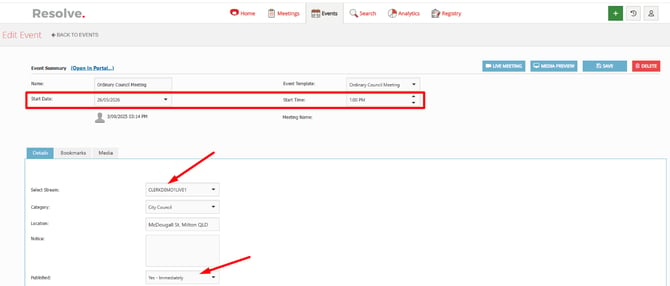
Confirm Select Stream set and Event Date and Time correct, in the first and second (only for back-to-back streamed meetings) Event page where required.
-
Confirm Event/s published to public portal (website).
- Remember to click SAVE button if you have made any changes
Tip: If only testing streaming, do NOT publish your Event to avoid visibility on your website
Pre-meeting 10 minutes before (Resolve)
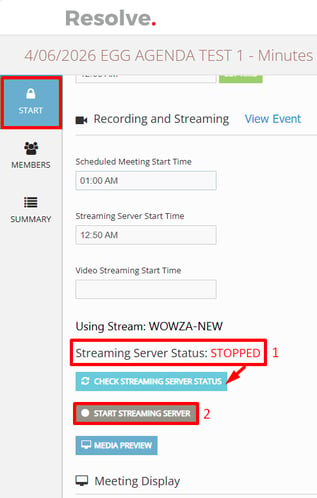
Based on the Event start Time set, a dedicated Streaming server will automatically start up 10 minutes before the scheduled start time, ready to receive your stream. This will be available in approx. 1 minute.
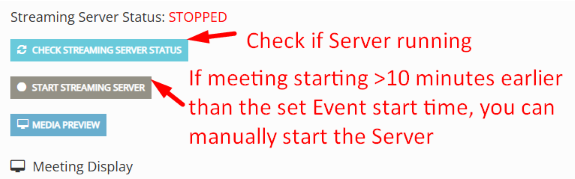
Tip: You can click the CHECK STREAMING SERVER STATUS button to check the server has started. You cannot send a stream to Resolve until the server is running.
-
To check the server has started, click the CHECK STREAMING SERVER STATUS button
-
If your meeting starts earlier or you or it hasn't started, you can click the START STREAMING SERVER button to manually initiate the server to start.
Pre-Meeting 5 minutes before (IT / Meeting Admin)
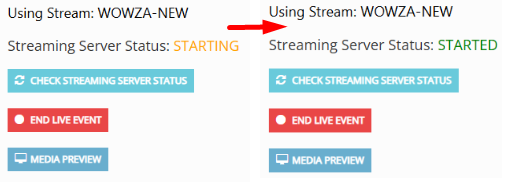
Having confirmed your streaming server is running and you see the status as shown below as STARTED, you can begin streaming from your Encoder (e.g. OBS, Teams), with pre-meeting splash card if in use "Welcome, the meeting will start shortly..."
Important:
- Be aware, there will be a delay of approximately 1 minute, before the steam you send is visible in Resolve and the Public portal.
- If no video is received for 15 minutes, the streaming server will automatically shut down. If this happens prematurely, and if you are to start sending a stream again, you can use the START STREAMING SERVER button, to manually restart. Allow 1 minute after restarting and check status as above, before sending your stream.
During meeting (IT / Meeting Admin)
For any breaks or Closed session, present the appropriate splash card in the Encoder and mute audio. Video should continue to be sent during breaks, or as mentioned above, the server will shutdown after 15 minutes. For Meeting Admin, during progression through Items, using SET CURRENT button will automatically bookmark the video, if this option is enabled under the Minutes > [Start] tab.
Meeting End (Meeting Admin)
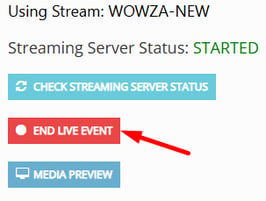
Allowing for end of meeting to be visible on your Public portal, click END LIVE EVENT button in Minutes [Start] tab. This will begin processing of the recording by the Streaming server and auto-upload to the Resolve Event, for availability on your Public portal. This should only take a few minutes, however may take longer depending on the length of your meeting. The video will include auto-generated Closed captioning.
BACK-to-BACK Streamed Meetings (IT / Meeting Admin)
When you have two streamed meetings one after the other, for example Public Forum followed by Council Meeting, see following steps and tips to be aware of to ensure the Streaming server is ready to accept your second meeting stream.
- At the end of the first meeting, as per Meeting End section above, ensure you have clicked the END LIVE EVENT button in Minutes screen [Start] tab. This signals the Resolve Streaming server to stop recording and start processing the first meeting video for upload.
- Navigate to the second meeting Minutes screen and refresh the browser to ensure you are seeing the latest update of that page.
-
Go to the [Start] tab and click the CHECK STREAMING SERVER STATUS button to check if the server has auto-started.
-
If the second meeting Event start time is greater than 10 minutes away, the Server will not have started yet. If the meeting is starting more than 10 minutes earlier, you can manually click the START STREAMING SERVER button, however check it is not already running.
-
Once Streaming Server started, you can start sending your Encoder's stream when ready.
- Follow the During meeting and Meeting End steps in the previous section.